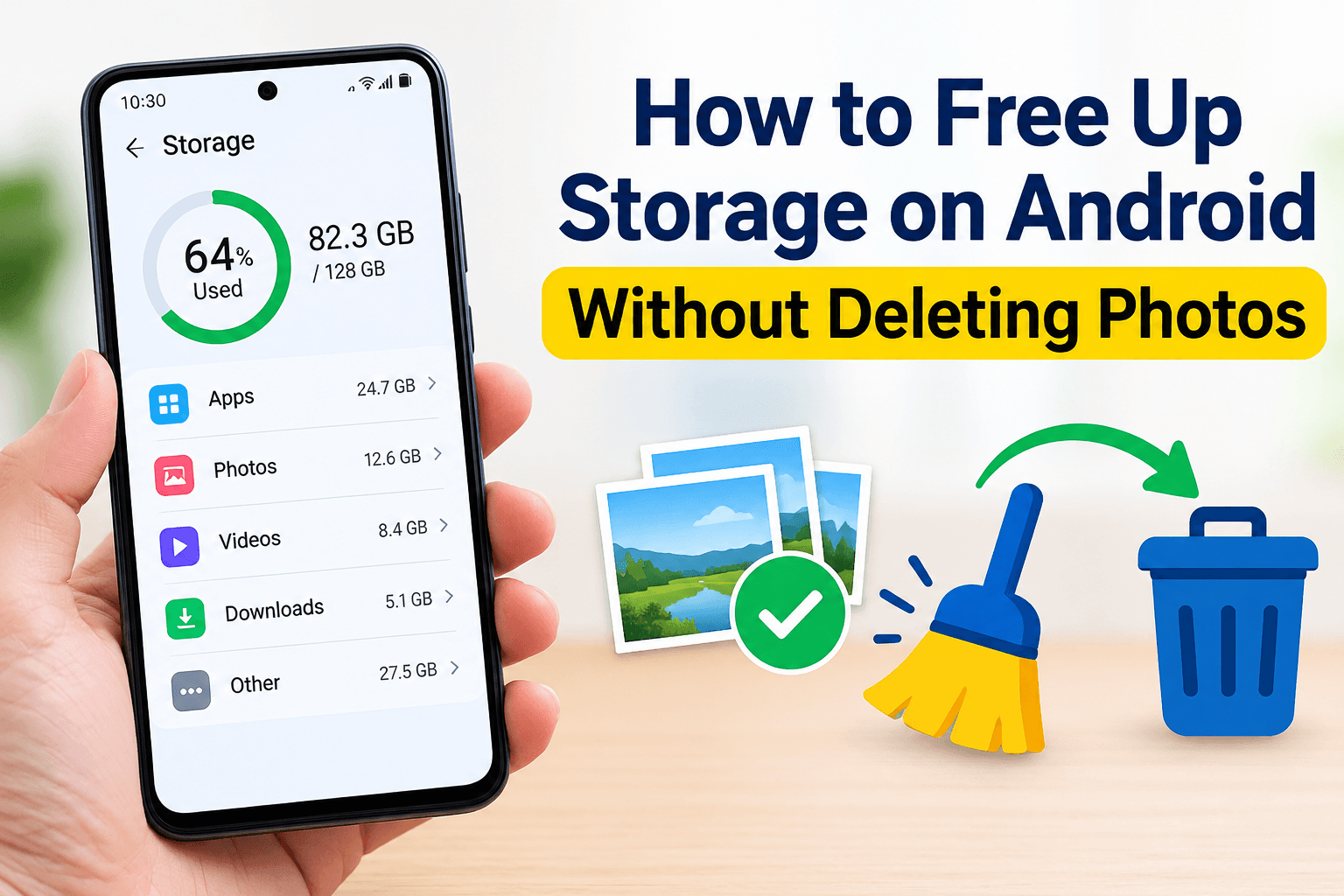
How to Free Up Storage on Android Without Deleting Photos
Running out of storage on your Android phone can be frustrating, especially when your photos and videos are important. You may see warnings such as “Storage space running out” or notice that your phone has become slow. The good news is that you do not necessarily need to delete your precious photos to free up storage on android.
There are several safe and effective ways to free up storage on Android without deleting photos. You can remove unnecessary cache files, uninstall unused apps, clean downloads, delete duplicate files, manage WhatsApp media, move large files to cloud storage, and use Android’s built-in storage tools.
In this guide, you’ll learn how to reclaim storage while keeping your important photos safe.
Why Is My Android Storage Full?
Before deleting anything, it is useful to understand what is consuming your phone’s storage.
Android storage is commonly used by:
- Photos and videos
- Installed apps and games
- WhatsApp and other messaging media
- Downloaded files
- App cache
- Offline videos and music
- Duplicate files
- Screenshots and screen recordings
- Documents and ZIP files
- System files
Sometimes, apps can accumulate several gigabytes of temporary files over time. Messaging applications can also automatically download hundreds or thousands of images and videos.
Therefore, freeing Android storage doesn’t always mean deleting photos. Cleaning other categories can recover significant space.
1. Check What Is Using Your Android Storage
The first step is to find out where your storage is going.
On most Android phones:
Settings → Storage
Depending on your phone manufacturer, the menu may be called Storage, Device Care, or Battery and Device Care.
You’ll typically see categories such as Apps, Images, Videos, Documents, Audio, and System.
Look for the category consuming the most space.
For example, if your phone has 128GB of storage and 30GB is being used by apps, uninstalling unused apps may recover more space than touching your photos.
Tip: Don’t immediately delete files just because Android recommends cleaning them. Review the files first, particularly if they contain personal information.
2. Clear App Cache to Free Up Space
One of the easiest ways to recover storage is by clearing unnecessary app cache.
Apps such as browsers, social media platforms, shopping apps, and video applications can accumulate cached data.
To clear cache:
Settings → Apps → Select an app → Storage → Clear Cache
The exact steps may differ between Android brands.
What happens when you clear cache?
Clearing cache normally removes temporary files rather than your personal photos or documents.
You may notice that an app takes slightly longer to load the first time afterward because it needs to rebuild some temporary data.
Important: Don’t tap “Clear Storage” accidentally
Android may provide two options:
- Clear Cache
- Clear Storage/Data
Clear Cache is generally the safer option when your goal is to remove temporary files.
Clearing app storage can reset an app and may remove locally stored information, depending on the application.
3. Delete Unused Apps and Games
Apps and games can consume enormous amounts of storage.
A few large games can easily occupy several gigabytes, especially after updates and additional downloadable content.
Go to:
Settings → Apps
Review applications you haven’t used recently.
Ask yourself:
- Do I still use this app?
- Have I opened it in the last few months?
- Can I reinstall it later if needed?
- Is it taking hundreds of megabytes or several gigabytes?
Uninstalling unused apps is one of the best ways to free up Android storage without deleting pictures.
If you are unsure about an app, research what it does before removing it.
4. Clean the Downloads Folder
The Downloads folder is often overlooked.
Over time, your phone may accumulate:
- PDF files
- APK files
- ZIP archives
- Images
- Videos
- Documents
- Old invoices
- Installation files
- Files downloaded from websites
Open your phone’s Files or File Manager application and check the Downloads folder.
Sort files by size if your file manager supports it.
Delete files you no longer need.
This can free up storage without affecting photos stored in your main photo library.
5. Manage WhatsApp Storage
WhatsApp can quietly consume a huge amount of Android storage.
Photos and videos received through WhatsApp may remain on your phone even when you don’t remember downloading them.
Open WhatsApp and go to:
Settings → Storage and data → Manage storage
You can identify large files and frequently forwarded media.
Instead of deleting your personal camera photos, focus on unnecessary WhatsApp videos, documents, memes, and duplicate media.
Prevent WhatsApp from filling your storage again
You can also review WhatsApp’s media auto-download settings.
Reducing automatic downloads can prevent unnecessary images and videos from being saved to your phone.
This is especially useful if you are part of several active WhatsApp groups.
6. Remove Duplicate Files
Duplicate photos aren’t the only files that can be duplicated.
Your phone may contain duplicate:
- Videos
- Documents
- Downloads
- Screenshots
- PDFs
- Audio files
Some Android file managers include a Duplicate files or Clean feature.
Use these tools carefully and review the files before deleting them.
If two files have similar names but you are not sure whether they are identical, don’t delete them until you’ve checked.
7. Delete Old Screenshots and Screen Recordings
Screenshots can accumulate surprisingly quickly.
You might have screenshots of:
- Shopping products
- Conversations
- Receipts
- Social media posts
- Maps
- Tickets
- Temporary information
Screen recordings can consume even more storage because videos are much larger than images.
Open your Gallery or Photos app and review your screenshots and screen recordings.
Deleting unnecessary screenshots and recordings can recover storage while allowing you to keep your important camera photos.
8. Move Photos and Videos to Cloud Storage
If photos are the largest category on your phone, you don’t necessarily have to delete them permanently.
You can back them up to a cloud service and then remove the local copies from your device.
Popular options include:
- Google Photos
- OneDrive
- Dropbox
- Other reputable cloud-storage services
Before removing anything from your phone, make sure the files have successfully uploaded and can be accessed from the cloud.
Use Google Photos carefully
If you use Google Photos, check that your important photos are backed up before using any option designed to free device storage.
The goal is to remove the local copy while keeping the backed-up version available in your account.
Never assume a photo is backed up simply because it appears inside the Google Photos app. Check the backup status first.
9. Transfer Photos to a Computer or External Storage
Cloud storage isn’t the only solution.
You can also transfer photos and videos to:
- A Windows PC
- A Mac
- An external SSD
- A USB flash drive compatible with your phone
- A reliable external storage device
After transferring the files, verify that they open correctly on the other device before removing local copies.
This is particularly useful for people who have many years of family photos and videos.
10. Remove Offline Videos and Music
Streaming applications often allow users to download content for offline viewing or listening.
These downloads can consume several gigabytes.
Check apps such as:
- YouTube
- Netflix
- Spotify
- Other streaming services
Look for downloaded movies, TV episodes, playlists, podcasts, or music you no longer need offline.
Removing offline downloads doesn’t normally delete your account or permanently remove the content. You can usually download it again later when needed.
11. Clean Large Files
Your Android phone may contain large files that you forgot about.
Open Files or your phone’s file manager and look for a Large files section.
Review large videos, archives, documents, and installation packages.
Pay special attention to files larger than 500MB or 1GB.
A single large video can sometimes free more storage than deleting hundreds of small files.
12. Empty the Trash or Recently Deleted Folder
Some Android gallery and file-management applications don’t immediately remove deleted files.
Instead, they place them in a:
Trash / Bin / Recently Deleted
folder.
Files may remain there for several weeks.
If you’re certain that the files are no longer needed, emptying the trash can recover the associated storage.
However, remember that emptying the trash usually makes recovery much harder or impossible.
13. Don’t Use Random “Phone Cleaner” Apps
You may see many applications claiming to make your Android phone faster by deleting junk files.
Be careful.
You generally don’t need a third-party cleaner to perform basic storage maintenance.
Android and many phone manufacturers already provide built-in tools for:
- Cache management
- Large files
- Unused apps
- Duplicate files
- Storage analysis
Installing multiple cleaner applications can sometimes create additional clutter rather than solving the problem.
14. Restart Your Phone After Cleaning
After completing a major storage cleanup, restart your Android phone.
A restart can help the operating system refresh temporary processes and storage information.
It may also resolve situations where an application continues displaying an outdated storage figure.
15. Keep Some Free Storage Available
Don’t wait until your phone reaches 99% capacity.
Android needs available storage for temporary files, app updates, system processes, and other operations.
As a general habit, try to keep a reasonable amount of free space available.
For example, if your phone has 128GB of storage, keeping several gigabytes free can give the device more breathing room.
The exact amount you need depends on how you use your phone.
Quick Android Storage Cleanup Checklist
If you need to free storage quickly without deleting your photos, try these steps:
- Check Settings → Storage.
- Clear unnecessary app cache.
- Uninstall unused apps and games.
- Clean the Downloads folder.
- Remove unnecessary WhatsApp media.
- Delete old screenshots.
- Remove unwanted screen recordings.
- Delete unnecessary large files.
- Remove offline videos and music.
- Check duplicate files.
- Empty the Trash/Recently Deleted folder.
- Back up important photos and videos.
- Transfer older media to a computer or external storage.
- Restart your phone.
Frequently Asked Questions
How can I free up Android storage without deleting photos?
Start by clearing app cache, uninstalling unused apps, cleaning Downloads, removing unnecessary WhatsApp media, deleting old screenshots and screen recordings, and removing offline videos. You can also move older photos to cloud or external storage rather than permanently deleting them.
What is taking up so much space on my Android phone?
Apps, videos, WhatsApp media, downloads, cached files, games, offline content, and system data are common causes. Open your phone’s Storage settings to identify the largest categories.
Does clearing cache delete photos?
Normally, clearing an app’s cache removes temporary files and does not delete photos stored in your Gallery. However, always make sure you’re selecting Clear Cache, not Clear Storage/Data, because the latter can reset the app.
How do I free up storage without deleting anything important?
Review storage by category instead of deleting files randomly. Start with temporary cache, unused applications, old downloads, duplicate files, offline content, and unnecessary messaging media.
Can I keep my photos while freeing phone storage?
Yes. You can back up photos to a cloud service or transfer them to a computer or external storage device. Once you verify the backup, you can remove local copies to create more space.
Does deleting WhatsApp media delete my photos?
It depends on where the file is stored and how you delete it. Review WhatsApp’s storage manager and confirm which files you are removing before proceeding.
Final Thoughts
You don’t have to sacrifice your precious photos just because your Android phone is running out of storage. In many cases, the biggest storage problems come from unused apps, WhatsApp media, cached data, downloads, duplicate files, offline content, and large videos.
Start by checking your Android storage breakdown and tackle the largest unnecessary category first. Back up important photos before making major changes, and avoid blindly using aggressive cleaning applications.
With a few simple maintenance habits, you can free up Android storage without deleting photos and keep your phone running smoothly for longer.